updated 2026-11-26·4 min read
Editor
Live Preview, Source Mode, and Reading View, Document Options menu, Web Clip Cleaner, Find & Replace, and the 25x Image Lightbox.
Noether’s editor renders Markdown formatting in place as you type, reveals raw syntax when your cursor enters a token, and writes plain CommonMark .md files back to disk.
Editing & Viewing Modes
Flip between three modes depending on what you’re doing:
Live Preview (Default)
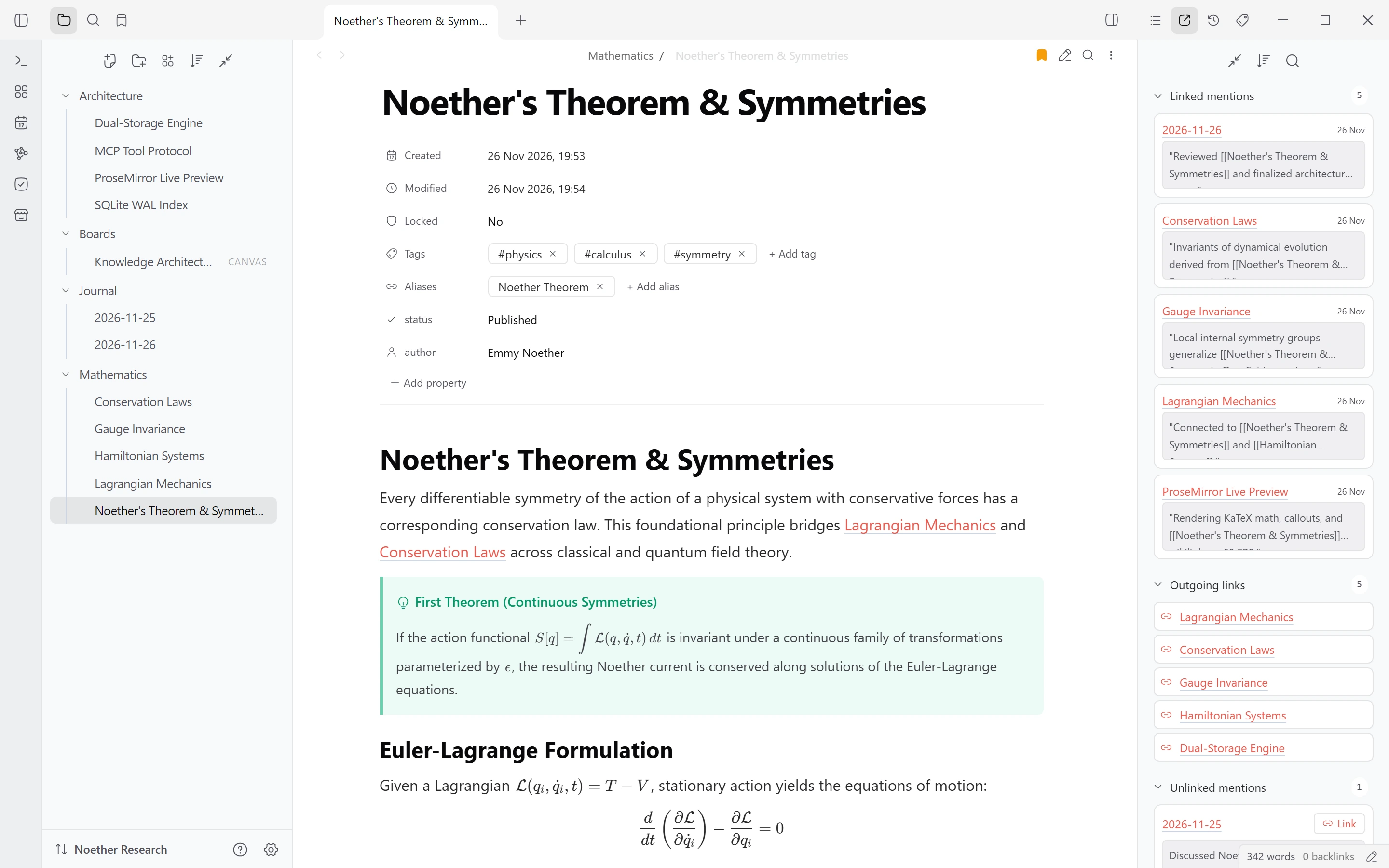
Headings, bold text, callouts, KaTeX chips, and tables render as you write. Put your cursor inside a token and the raw Markdown reveals itself for editing.
Source Mode & Reading View
Switch to Source Mode (Ctrl+Alt+S) for raw monospaced CommonMark (handy for gnarly frontmatter or custom HTML), or Reading View (Ctrl+E) when you just want to read without accidental edits.
Document Options Menu
Click the three dots (...) in the top-right corner of any note to access contextual actions:
- Lock Note (Read-Only): Prevents accidental edits and hides the typing cursor (can also be set via
locked: truein YAML frontmatter). - Merge Note With…: Appends another vault note directly into the active document with a clean divider and heading.
- Zoom Presets: Instant viewport scaling from
50%to200%. - Export to PDF: Opens the system print and PDF export dialog. For native PDF reading and slides, see PDF Viewer & Presentation Mode.
- Reveal in File Tree: Expands parent folders in the left sidebar and highlights the active file.
- Show in System Explorer / Open in Default App: Opens the file location in Windows File Explorer or macOS Finder, or launches your OS default Markdown reader.
- Copy Path Submenu: Copies the vault-relative path, full filesystem path, or
[[Note Title]]wikilink.
Find & Replace in Note
Press Ctrl+F (Cmd+F on macOS) to open the in-editor search bar, or Ctrl+H (Cmd+H) to reveal the Replace field:
- Pre-Populated Search: Selecting text before pressing
Ctrl+Ffills the search box automatically. - Match Navigation: Displays a live match counter (e.g.
3 of 12). PressEnteror↓for the next match, andShift+Enteror↑for the previous match. - Case Matching (
Aa): Toggle exact casing sensitivity. - Batch Replacement: Click Replace for the active match or Replace All for an atomic document-wide replacement.
- Dismissal: Press
Escto close the bar and restore editor focus.
Web Clip Cleaner & Citation Stripper
Pasting content copied from research articles, Wikipedia, or web pages automatically cleans formatting clutter:
- Strips academic inline citation footnotes (
[1],[12],[citation needed]). - Converts pasted HTML headings, tables, and lists into clean CommonMark.
- Strips referral tracking parameters from pasted URLs.
Image Lightbox & Media Viewer
Click any embedded image in Live Preview or Reading View to open the full-screen Image Lightbox:
- Cursor-Centered Zoom: Scroll with the mouse wheel or pinch on a trackpad to zoom up to
25xcentered at your cursor. - Keyboard Zoom: Press
+or=to zoom in,-or_to zoom out, and0(Numpad0) to reset to1xfit. - Double-Click Zoom: Double-click anywhere on an image to toggle between
1xfit and2xmagnification. - Pan: Click and drag when zoomed, or use arrow keys (
Shift + Arrow Keysfor100pxsteps). PressEscor click the backdrop to close.
Appearance & Typography
Under Settings (Ctrl+,) → Appearance, switch between System, Dark, and Light lighting modes independently of your theme (Dark & Light, Dark only, or Light only badges on the built-in Noether theme and any custom ThemeDefinition JSON themes you create or import). You can also customize Interface, Text, and Monospace fonts, accent colors, and link palettes.
Next Steps
- Learn text styling, lists, and wikilinks in Basic Formatting.
- Insert equations in Math & LaTeX.
- Create interactive tables with Tables.
- Add highlight callouts with Callouts.